A Beginner’s Guide to Digital Planning
If you've ever watched someone flip through a beautiful digital planner on an iPad and wondered how in the world they're doing that, digital planning is probably much simpler than you think.
At its most basic, a digital planner is a PDF that you open inside a note-taking app and write on with a stylus. Instead of turning paper pages, you're moving through pages on a screen. Instead of writing with your favorite pen, you're using a digital pen. And when you write something on the wrong day, you can pick it up and move it instead of scribbling it out and pretending it never happened.
For this guide, that's the kind of digital planning we're talking about. There are also dedicated planning and productivity apps like Notion, Todoist, and others that can be used to manage your schedule and tasks, but that's a completely different way of planning. We'll save that conversation for another day.
What you need to start digital planning
You really don't need much.
You'll need a tablet or another device that allows you to comfortably write on the screen, a compatible stylus, a note-taking app that can import and annotate PDF files, and a digital planner.
An iPad and Apple Pencil are probably the combination you've seen most often online, but they aren't your only choice anymore. Android tablets, Samsung Galaxy tablets, and some Windows devices can all be used for digital planning.
Before you buy anything, look at what you already own.
If you already have a tablet and stylus, start there. If your tablet already has a note-taking app that handles PDFs, try that too. You don't need to build the perfect digital planning setup before you've even figured out whether you like digital planning.
That's a pretty expensive way to discover that you miss paper.
So how does a digital planner actually work?
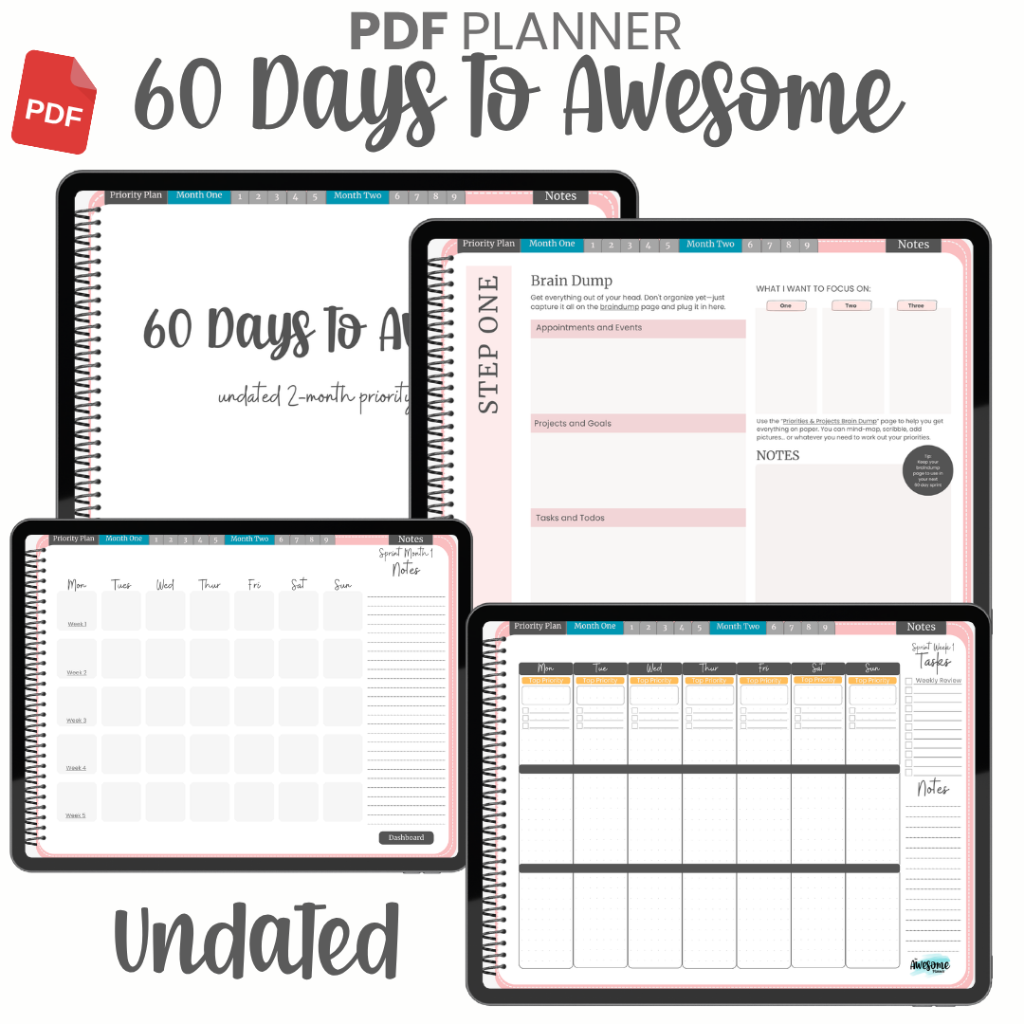
Most traditional digital planners are PDF files, just like PDFs you might download to your computer. The difference is that they're designed specifically to be written on and used as planners.
You download the planner file and import it into a compatible note-taking app. Once it's there, you can use your stylus to write directly on the planner pages.
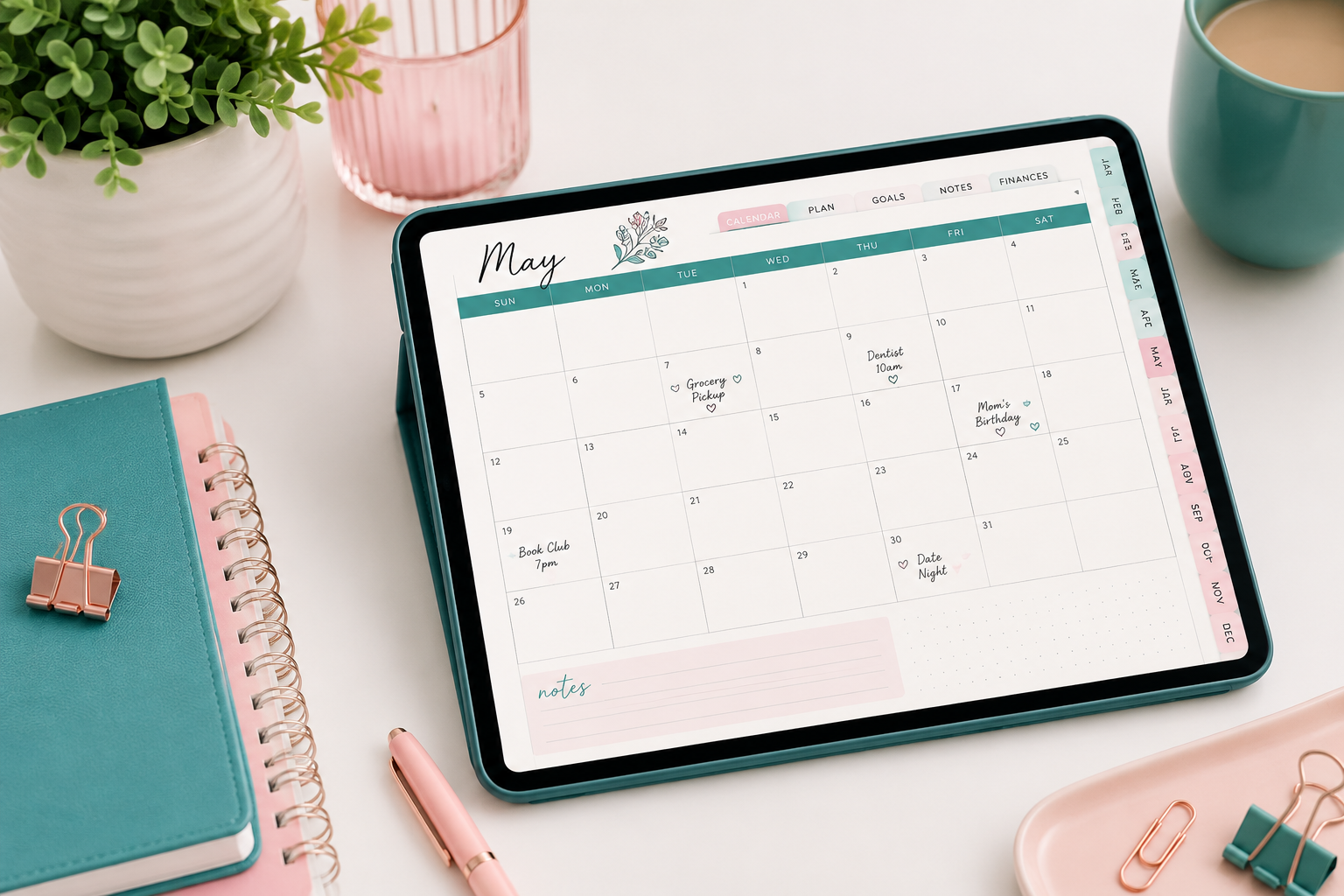
A good digital planner will usually be hyperlinked. Those hyperlinks are what make the planner feel more like an actual digital product instead of a stack of PDF pages.
For example, you might have tabs along the side for each month. Tap March and you're taken directly to March. Your monthly calendar might have links that take you to individual weeks or days. There may also be links for notes, goals, projects, or other sections of the planner.
You still plan much the same way you would on paper. You write appointments on your calendar, make your task lists, plan your week, take notes, and check things off as you get them done.
The difference is that digital planning gives you a few tricks paper can't.
You can erase without leaving a mess. You can use a lasso tool to move something you wrote on Tuesday over to Wednesday. You can copy and paste recurring information instead of writing it again. Depending on your app, you can add photos, screenshots, typed text, stickers, and additional pages.
You can also carry a rather ridiculous number of planner pages around without your bag weighing 14 pounds.
Which digital planning app should you use?
This is probably where beginners get overwhelmed because there are a LOT of note-taking apps available now.
Goodnotes is one of the most well-known options and has been popular with digital planners for years. It's available across Apple, Android, Windows, Chromebook, and web platforms, although the exact experience and features can vary depending on which platform you're using.
Noteshelf is another option available on Apple, Android, and Windows devices. If you're using a Samsung Galaxy device, Samsung Notes may already give you what you need. It allows you to import a PDF and write or draw directly on it with an S Pen.
There are other apps available too, and this list will continue changing because apps come and go and features get added all the time.
But I wouldn't start by asking which app everybody else thinks is best.
I'd start by opening your tablet and seeing what you already have.
If you already own Goodnotes and know how to use it, use Goodnotes. If you have a Galaxy tablet and you're comfortable in Samsung Notes, try your planner there. If you already use another note-taking app that imports PDFs, supports your stylus, and handles the planner's hyperlinks correctly, there's a good chance you can start with that.
You can always change apps later if you discover there's something your current app can't do.
Choosing your first digital planner
Here's another place where it's very easy to get carried away.
Digital planners can include an almost comical number of pages. You can find planners with daily pages, weekly pages, monthly pages, habit trackers, meal planners, budget pages, fitness trackers, reading logs, project planners, goal-setting pages and enough extra templates to plan your life until approximately 2087.
You probably don't need all of that.
Think about how you plan right now. Do you primarily use a weekly layout? Do you need an hourly schedule? Do you prefer a daily page with plenty of room to write? Do you need space for a long task list?
Start there.
And if you've never used a digital planner before, I wouldn't spend much money on your first one. Look for a free sample or free digital planner that's compatible with your app and use it for a little while.
You're not trying to find your forever planner yet. You're trying to answer a much simpler question.
Do I actually enjoy planning this way?
Give yourself a week before you start decorating everything
Once you've imported your first planner, learn the basics of your note-taking app.
Figure out how to use the pen and eraser. Learn how the lasso or selection tool works. Practice moving between pages and using the planner's hyperlinks. Learn how to undo something when you inevitably tap the wrong thing.
Then use the planner.
Actually plan your Tuesday.
It's very tempting to immediately download 4,000 digital stickers, install six handwriting fonts, create a custom color palette and spend the evening making your planner adorable.
Meanwhile, Tuesday is still sitting there completely unplanned.
I dare you to ignore the digital stickers for a week.
Use the planner the way you'd use a paper planner and see whether digital planning makes your life easier. You can always add the fun stuff later.

What digital planning does really well
One of my favorite things about digital planning is how forgiving it is.
Plans change. Tasks move. Appointments get rescheduled. With a paper planner, that can leave you with arrows, crossed-out appointments and enough correction tape to qualify as a craft project. In a digital planner, you can usually select the thing that changed and move it.
Digital planners are also incredibly portable. One tablet can hold your planner, notebooks, journals and other PDFs without adding anything else to your bag.
They're especially useful if you like adding information to your planner. You can drop in a screenshot, add a photo, paste something you want to remember or duplicate a page you use frequently.
And yes, digital stickers are fun. I said you had to wait a week. I didn't say you could never use them.
But paper planners aren't obsolete
For all the things digital planning can do, sometimes a paper planner is still exactly what you need.
There's something wonderfully simple about opening a planner and picking up a pen. There's no battery to charge, no app to update and no toolbar standing between you and writing down what you need to remember.
Some people also think better on paper. The physical act of writing, flipping pages and seeing the week laid out in front of you just works better for them.
You might even discover that you like both.
Maybe you use a digital planner for one part of your life and paper for another. Maybe you digital plan for six months and then wander back to your paper planner. Maybe you use paper most of the time but pull out a digital planner when you need something portable.
None of those choices are wrong.
Start with what you already have
If you're curious about digital planning, don't turn trying it into another project.
Look at the tablet you already own. Try the note-taking app you already have. Find a free planner or sample that works with it and spend a week or two actually planning your real life.
Don't worry about creating the setup you saw somebody else using on YouTube. You can figure out the extras later if you decide you actually like planning this way.
And if you try it and hate it?
Close the app. Pick up your paper planner. Write down what you need to do tomorrow.
The point was never to become a digital planner person. The point was to find a way to plan your life that actually helps you live it.
Happy planning! - Michele